This tutorial demonstrates How to Add attendance for users in a Live/Combo class.
1. This video demonstrates How to Add attendance for users in a Live/Combo class
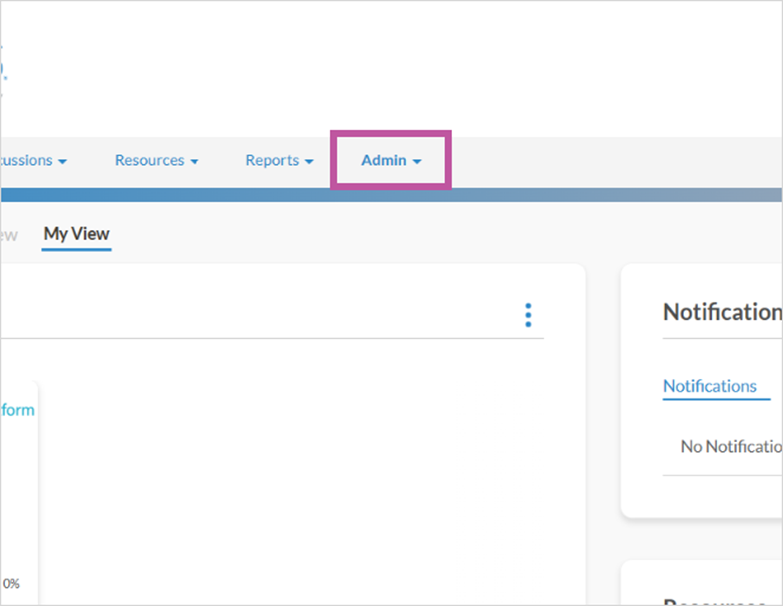
The first step is to open your LMS Site and click Admin

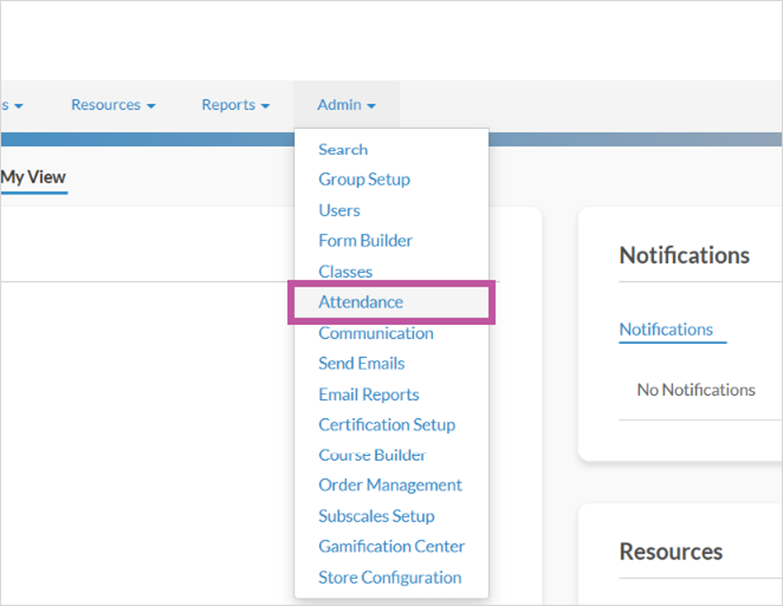
2. Click Attendance

3. Click Search

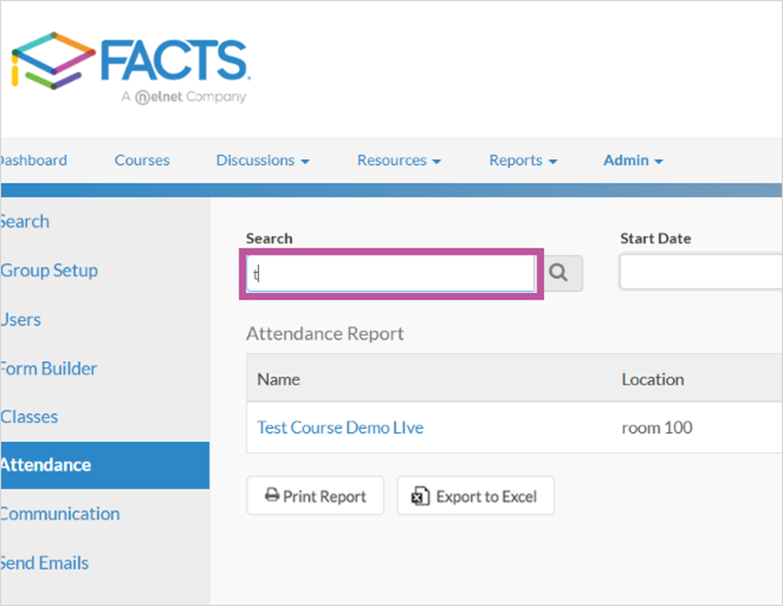
4. Type Class in Search box

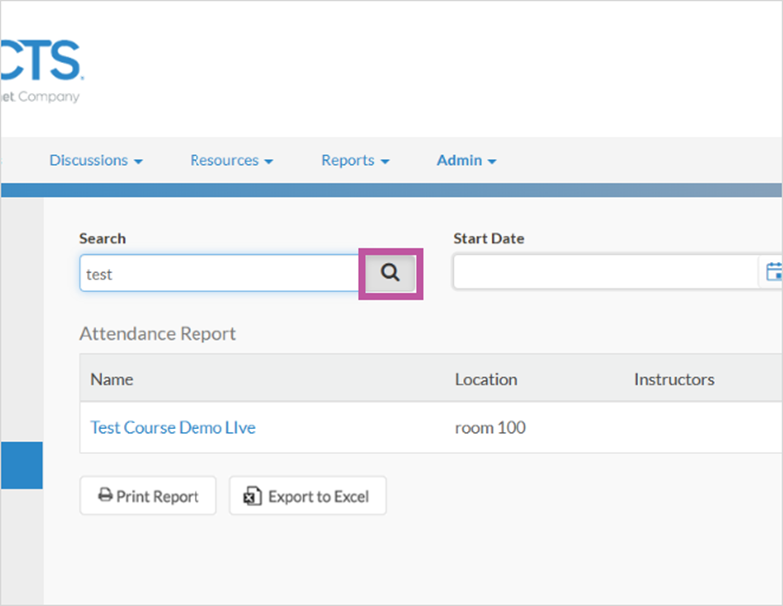
5. Click Search icon

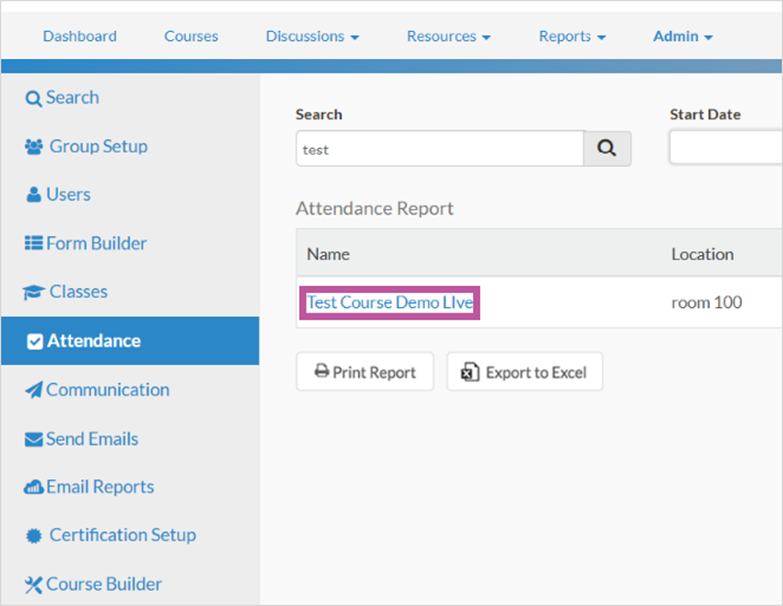
6. Select and Click Class

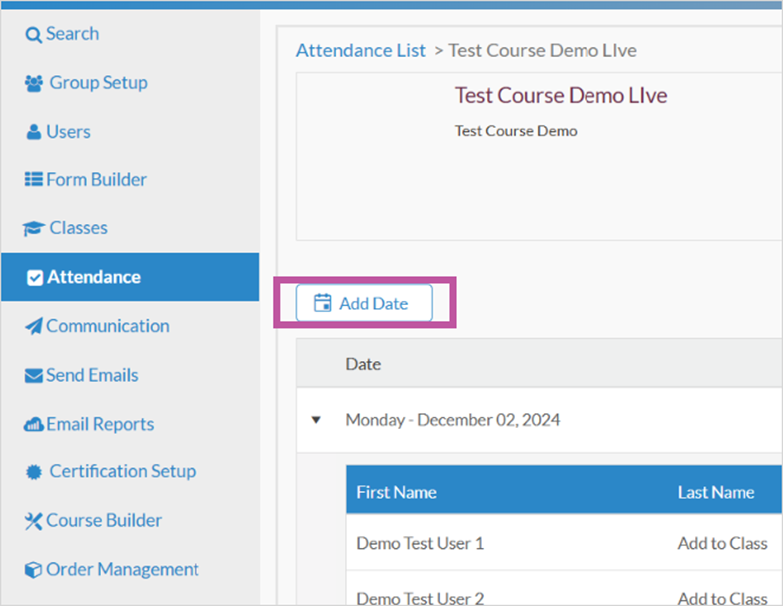
7. Add date if not using current date here

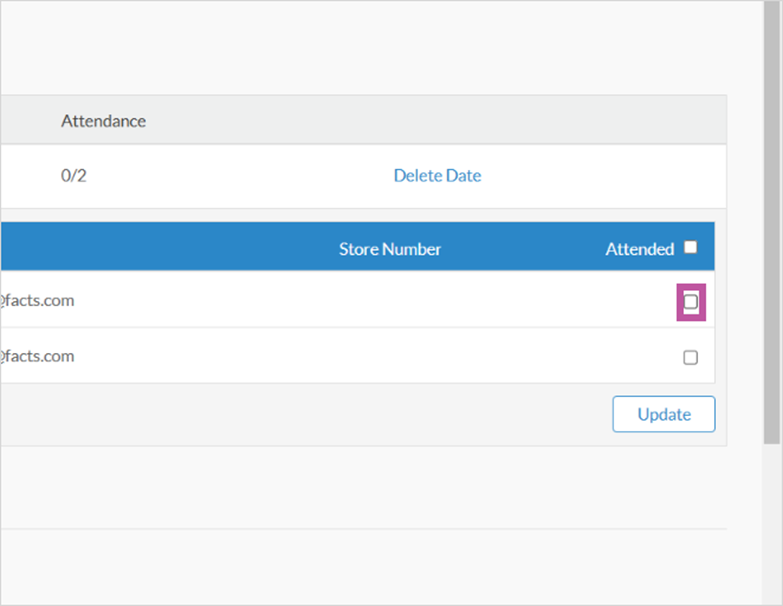
8. To mark attendance, scroll down and click User(s)

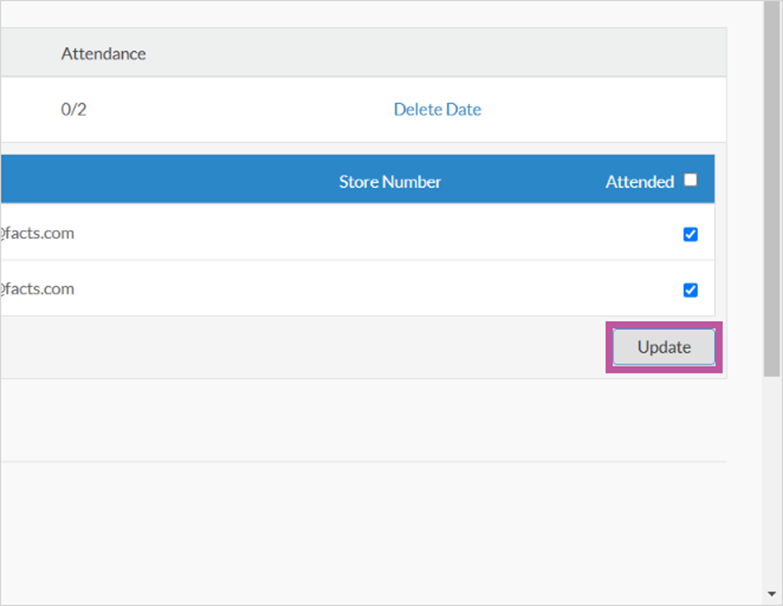
9. Once all users in attendance are checked, Click Update

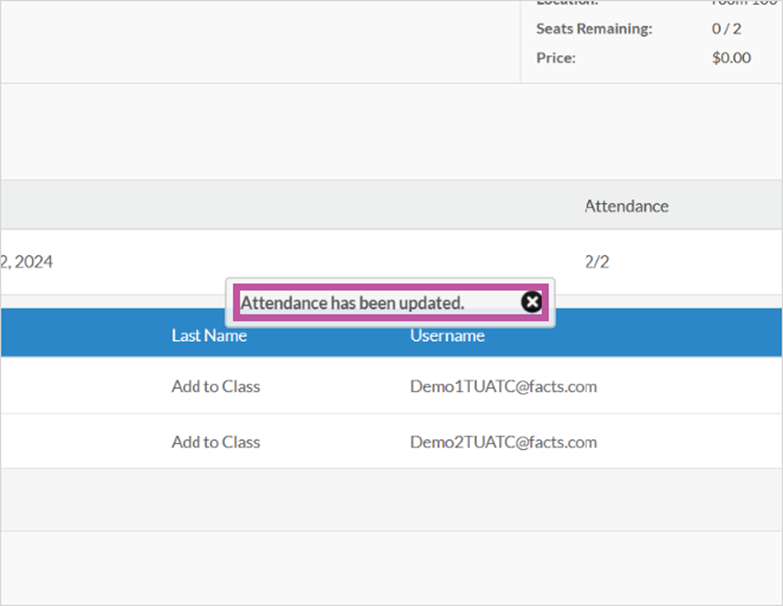
10. When complete, a popup will appear that shows Attendance has been updated

11. That's it. You're done.

Here's an interactive tutorial
** Best experienced in Full Screen (click the icon in the top right corner before you begin) **
https://www.iorad.com/player/2480923/How-to-Add-Attendance-for-Users-enrolled-in-a-Live-Combo-class-?iframeHash=trysteps-1
1. This video demonstrates How to Add attendance for users in a Live/Combo class
The first step is to open your LMS Site and click Admin
2. Click Attendance
3. Click Search
4. Type Class in Search box
5. Click Search icon
6. Select and Click Class
7. Add date if not using current date here
8. To mark attendance, scroll down and click User(s)
9. Once all users in attendance are checked, Click Update
10. When complete, a popup will appear that shows Attendance has been updated
11. That's it. You're done.
Here's an interactive tutorial
** Best experienced in Full Screen (click the icon in the top right corner before you begin) **
https://www.iorad.com/player/2480923/How-to-Add-Attendance-for-Users-enrolled-in-a-Live-Combo-class-?iframeHash=trysteps-1
Click on the highlighted boxes or use the arrows to navigate.
Written Guide
Step 1: Open your LMS Site and click Admin
Step 2: Click Attendance
Step 3: Click Search
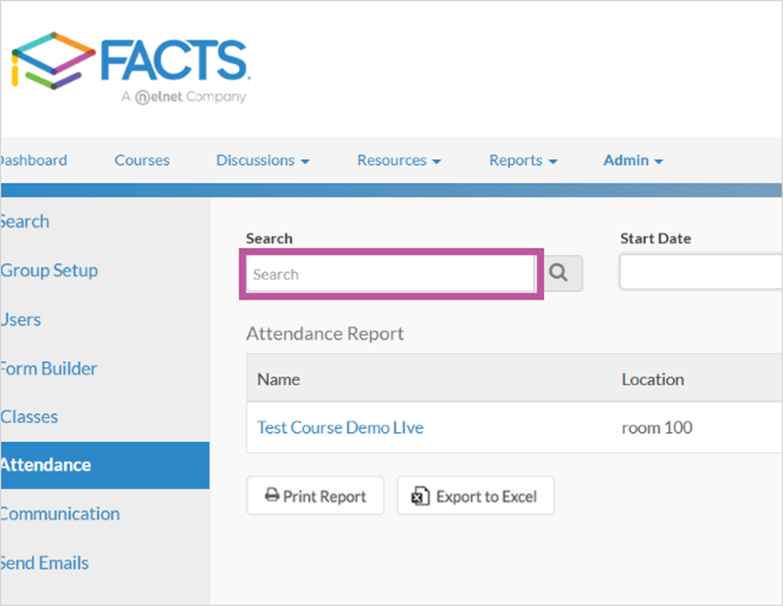
Step 4: Type Class in Search box
Step 5: Click Search icon
Step 6: Select and Click Class
Step 7: Add date if not using current date
Step 8: To mark attendance, scroll down and click User(s)
Step 9: Once all users in attendance are checked, Click Update
Step 10: When complete, a popup will appear that shows Attendance has been updated